

Sending GIFs in Slack is just plain fun.
Giphy is a built in Slack app for sending a GIFs in your messages.
How to send a GIF in Slack with Giphy
There are two ways to use it:
- With a shortcut that lets you choose a conversation
- With a slash command from an active conversation.
Sending with a Shortcut
-
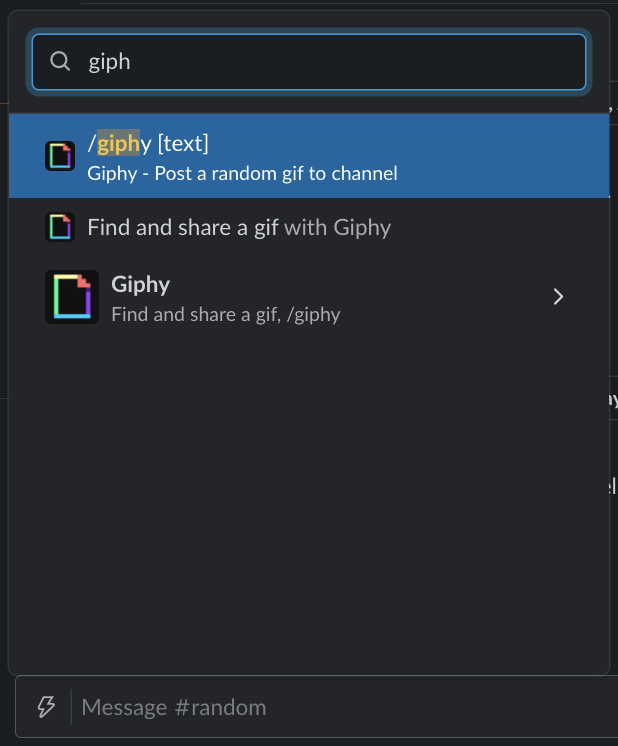
Click the ⚡ icon near the message input at the bottom of the Slack window. This will bring up a search bar where you can search for and click
Giphy.
-
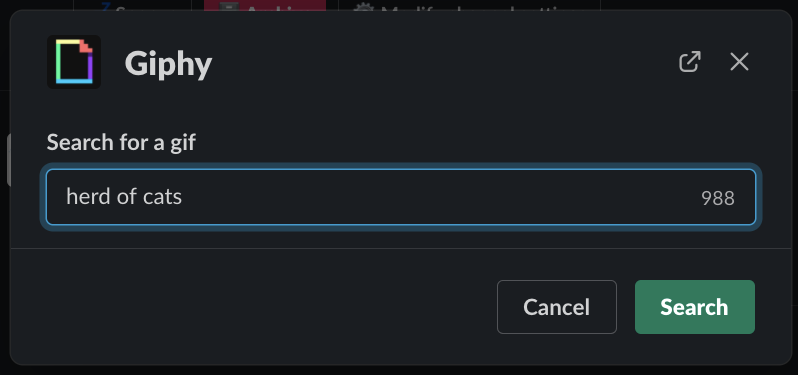
A modal will appear that lets you search a GIF you want to send. In the example, the user searched
herd of cats.
-
After you run your search, you can click
Shuffleto find a similar GIF orShareto send the current one.

Sending with a Slash command
-
Type
/giphyand the term you want to search for, then pressEnter. In this example, the user typed/giphy herd of cats.

-
After you run your search, you can click
Shuffleto find a similar GIF orSendto share the current one.Only you can see the GIF until you click
Send.
That’s it, enjoy sending GIFs! 🎉
If you like Giphy, you might enjoy Slate, which lets you make your own memes in Slack.
Check out this post from Slack for more on using Giphy.
👷🛠️ Happybara uses Slack as a surface to solve problems, let us help you tackle yours.
We’ll work through the problem scope alongside you to fully understand how it affects your team, then iterate on a solution with you involved every step of the way. It could be a custom Slack app, an integration, or something else – we’ll help find the best option for you, not our sales team. Our customers "love" and "can’t live without" our solutions, are you next?Get in contact through support@happybara.io or Slack if you want to start saving time, energy, and frustrations.